Journal
Your own print shop, and what Verity will and will not do
Selling prints of your own work has always meant one of two bad deals. Either you buy a printer, learn to pack a tube, and spend your evenings at the post office. Or you hand the whole thing to a print on demand site that keeps most of the money and treats your painting as a product line.
Veriroo now offers a third option, and it sits inside the gallery you already have.
Everything below works the same on the website and in the app. Each step shows both, so follow whichever you are holding.
What actually happens when someone buys a print
A buyer finds a print in your shop or in the Prints marketplace, picks a size and a paper, and pays. The order goes to a fine art lab near them, in the UK for UK buyers and the US for US buyers. The lab prints it and posts it to the buyer, tracked. You never see the order arrive, because there is nothing for you to do with it.
Veriroo is the seller of the print. We take the payment, pay the lab, answer the questions and handle the returns. If a print arrives damaged, the buyer sends a photo and gets a replacement or a refund.
You keep the original. The print is unsigned, unnumbered and unsealed. You are paid when the lab ships it.
Where it lives
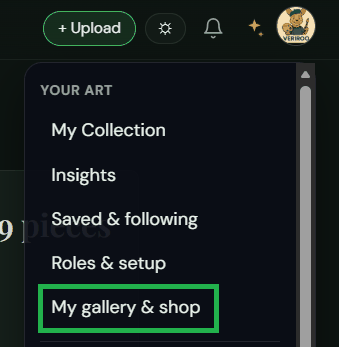
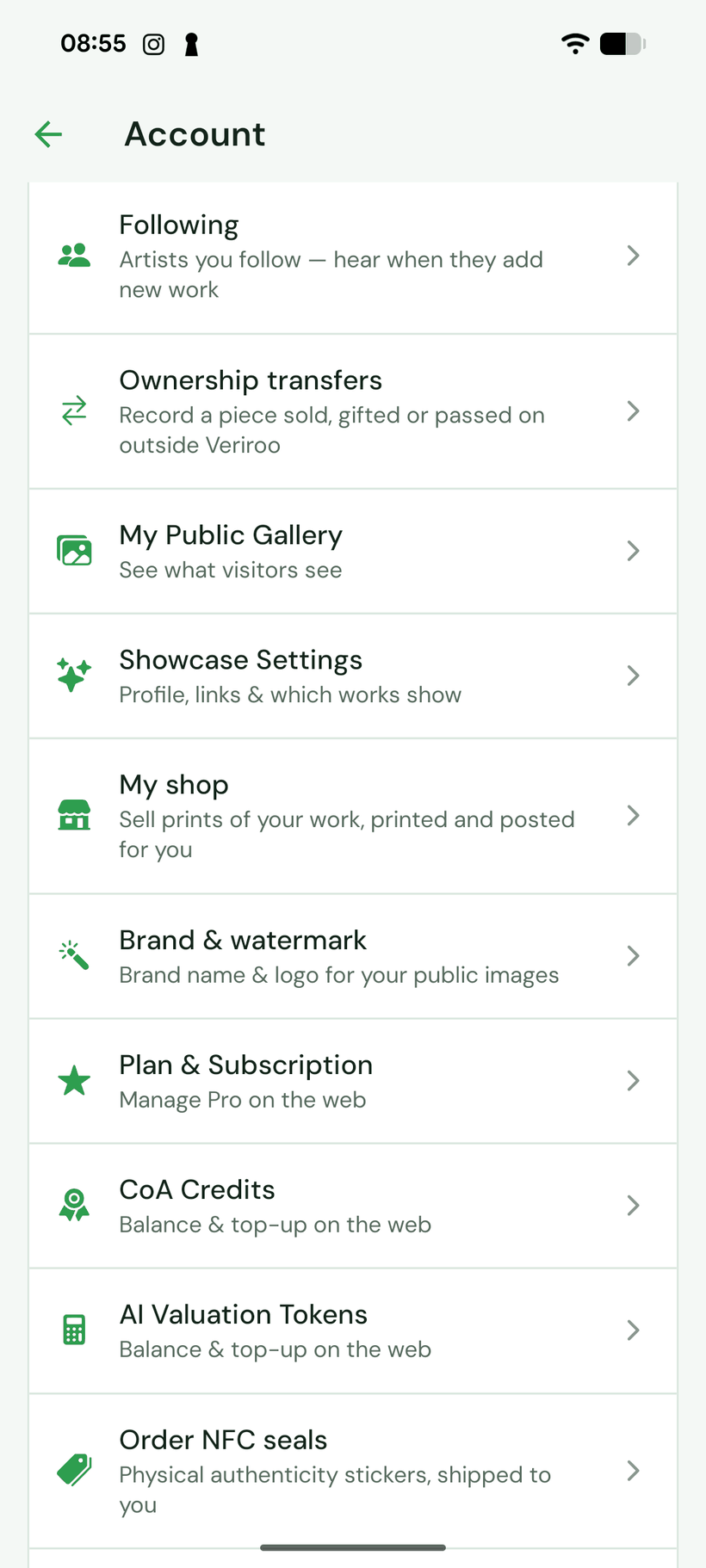
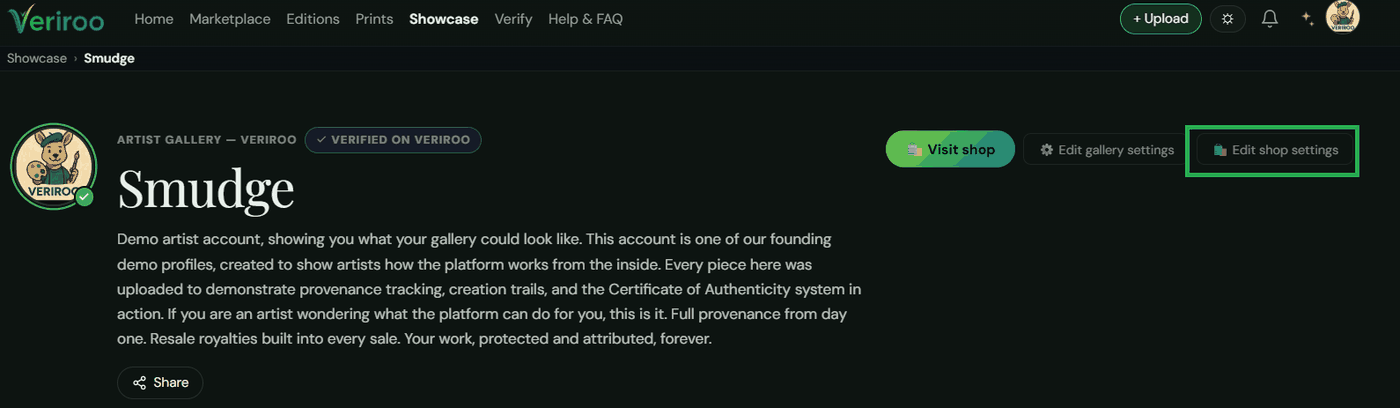
On the web, click your profile picture and choose My gallery and shop, then Edit shop settings. In the app, open Account and My shop sits between Showcase Settings and Brand and watermark. On any single piece, either way, the same controls are under Share and sell, Open prints.
Your gallery page also carries the buttons a visitor sees: Visit shop, next to your own Edit shop settings. The shop opens by itself the first time you put prints on a piece, so until then a visitor never lands on an empty page.
Papers
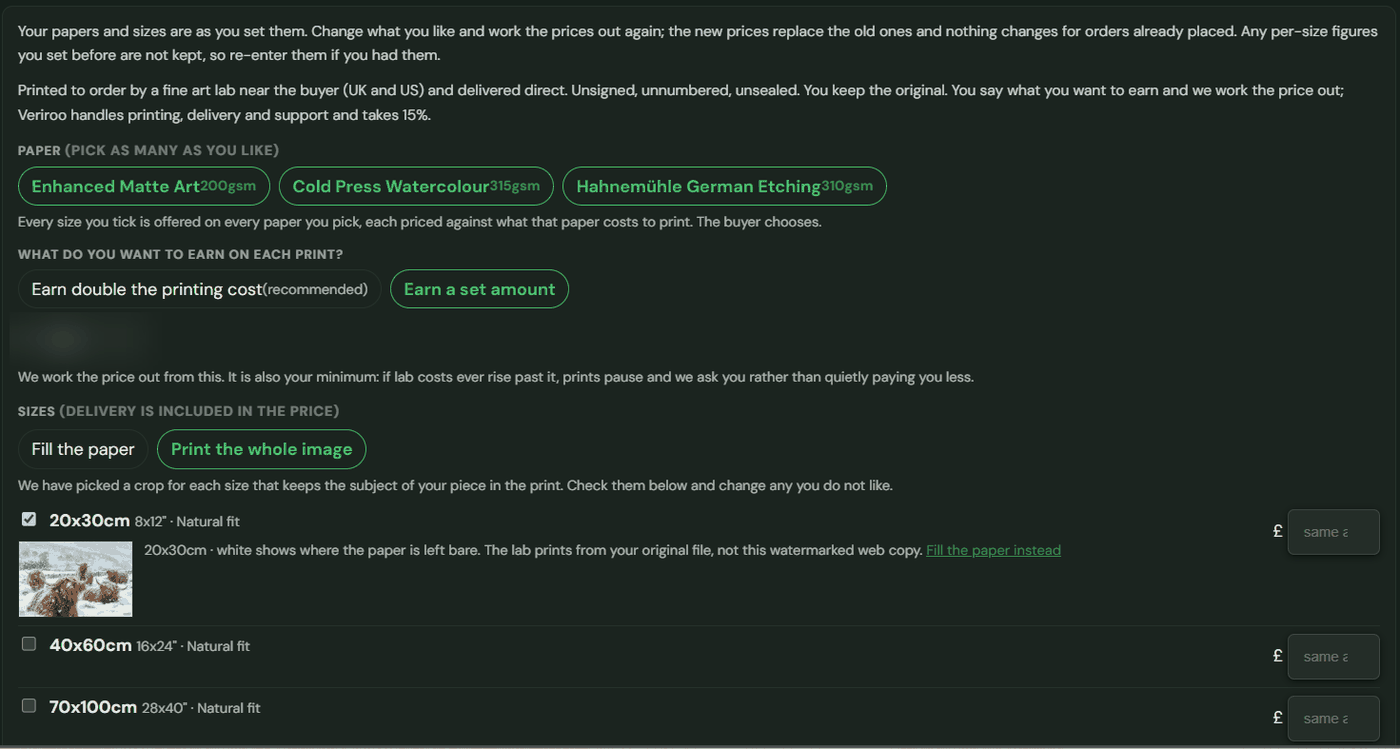
Three, and the buyer picks.
Enhanced Matte Art is smooth with no glare and crisp detail, and it suits most photographs and digital work. Cold Press Watercolour is textured cotton, soft and painterly, and it suits paintings and gentle landscapes. Hahnemühle German Etching is the heavy one, with a gentle texture and deep blacks.
Pick as many as you like. Every size you tick is then offered on every paper you picked, and the buyer chooses.
You say what you want to earn on each print and we work the price out from there. The recommended setting earns you double what the print costs to make, so a small print earns less and a large one more, and you can set your own figure instead, either across the board or size by size. Whatever you choose is also treated as your minimum: if the lab’s costs ever rise past it, your prints pause and we ask you, rather than quietly paying you less.
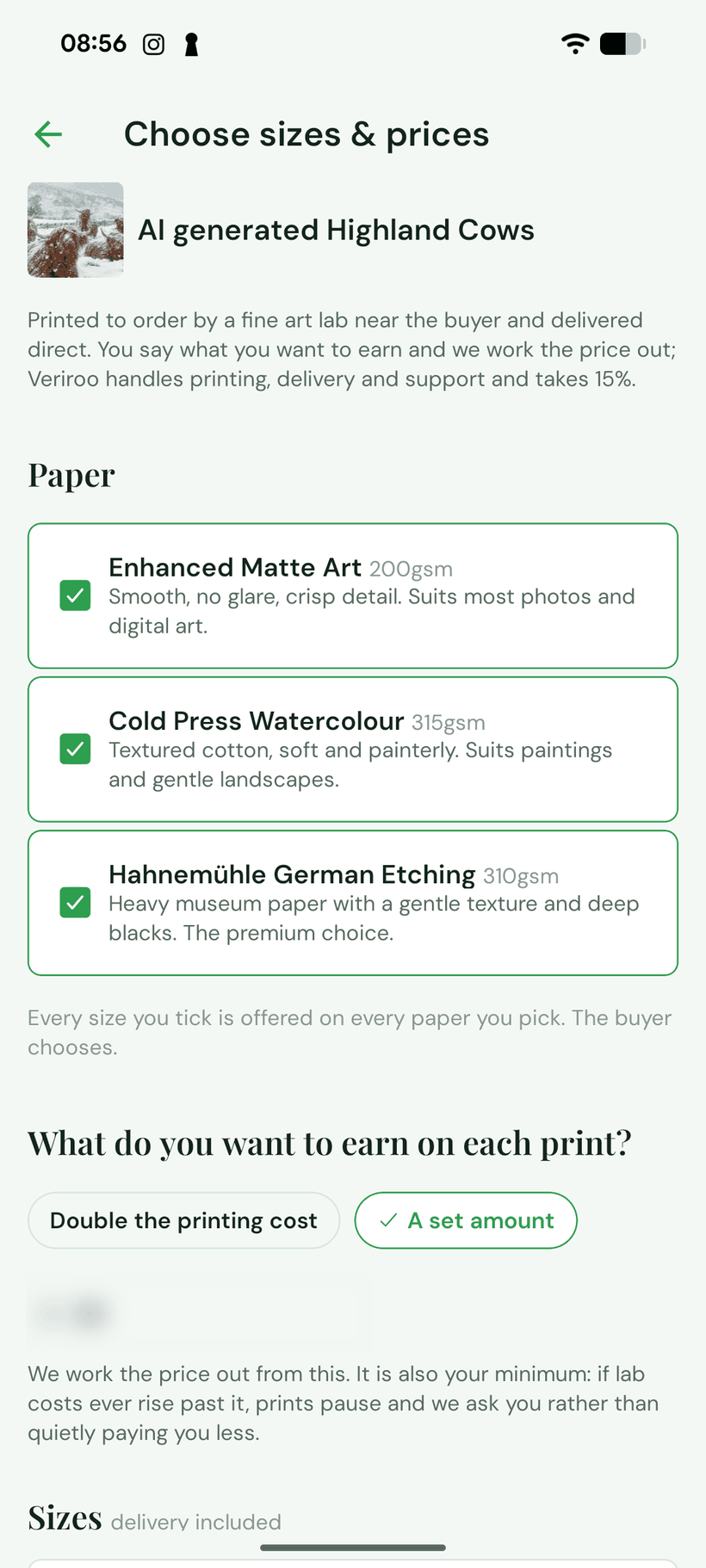
Sizes
Sizes run from 20x30cm up to 70x100cm. Each one is labelled by how your image sits on the sheet: a natural fit prints edge to edge, a small border or a wider border leaves paper showing. One switch at the top sets the default for all of them, either print the whole image or fill the paper. Delivery is included in every size.
A size is only offered if your file can print it sharply. That is not a judgement about your work, it is arithmetic: the lab cuts exactly the crop you choose out of your original file, so a tight crop uses fewer of its pixels and a large print needs more of them. The check runs when you save.
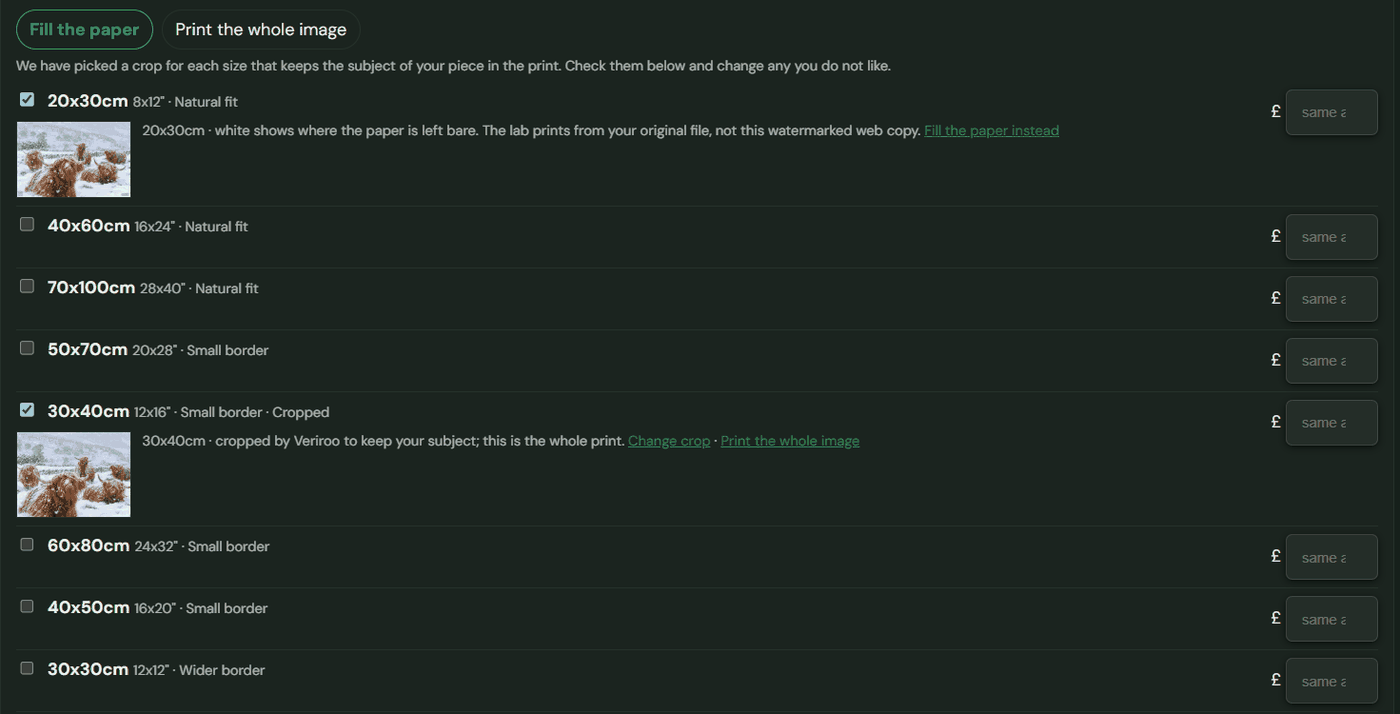
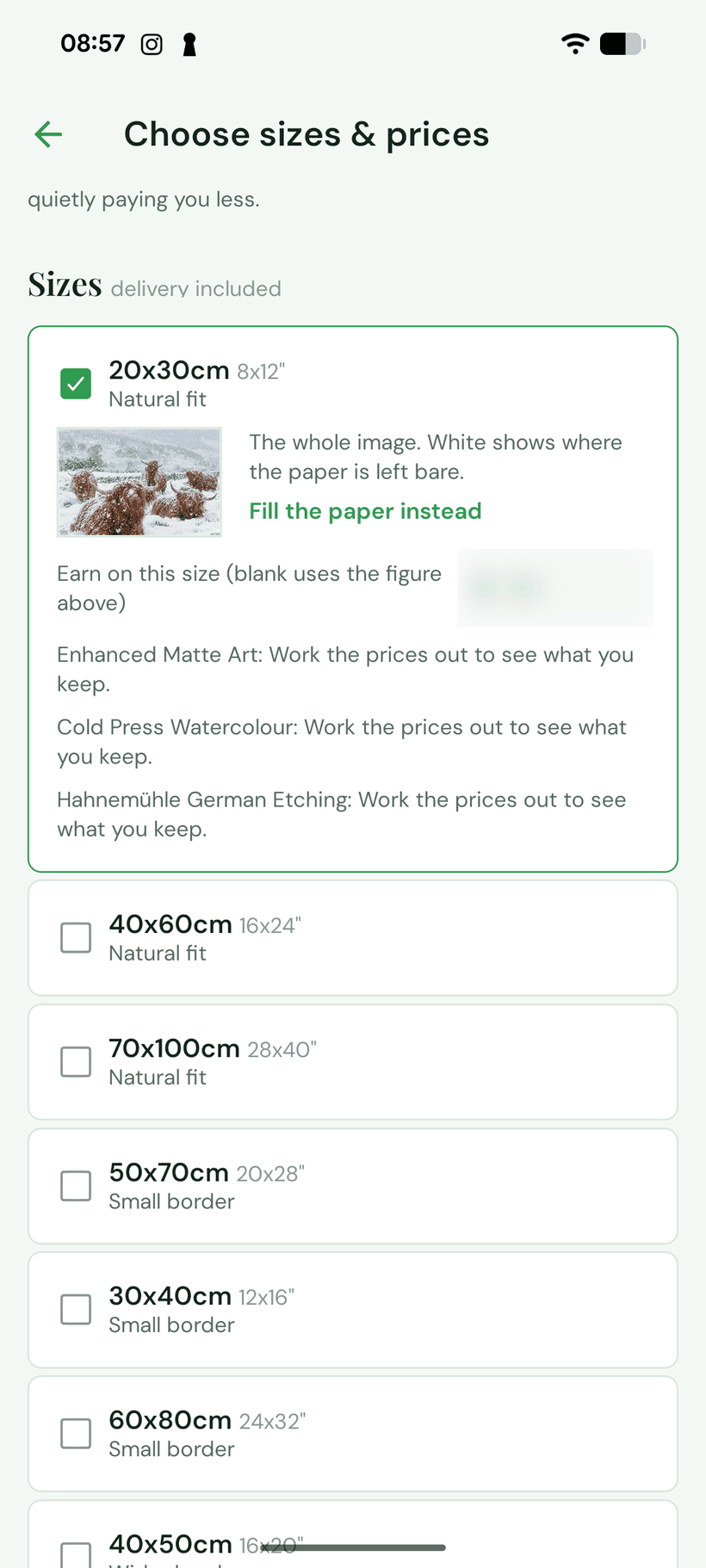
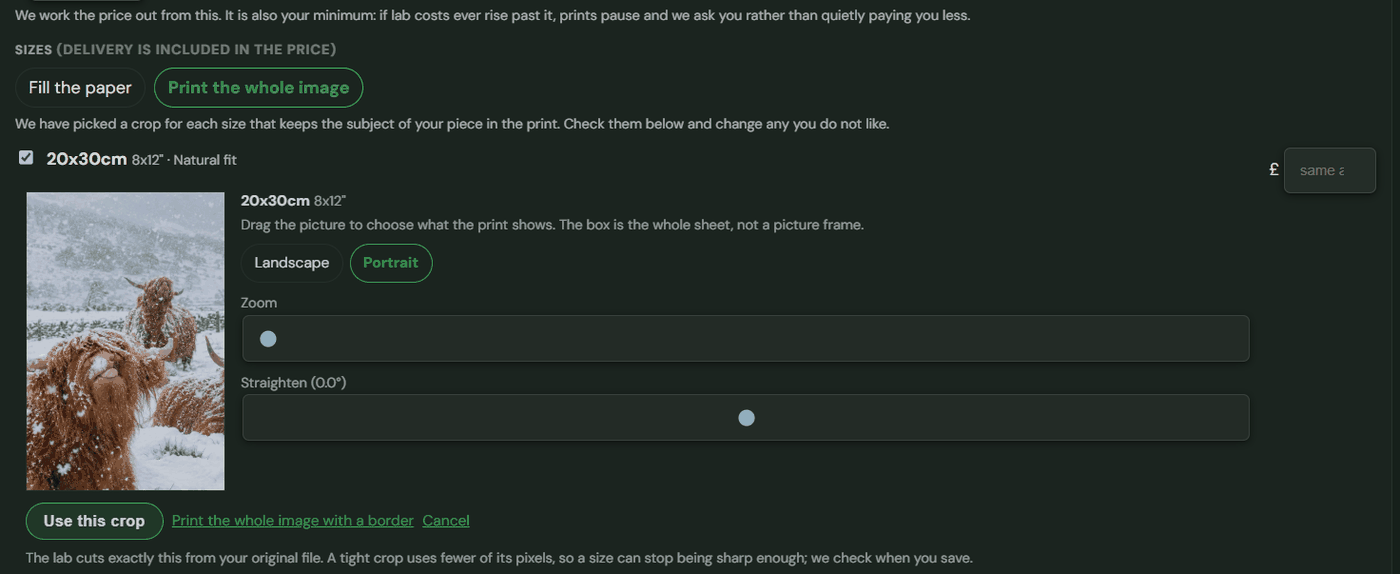
The crop tool
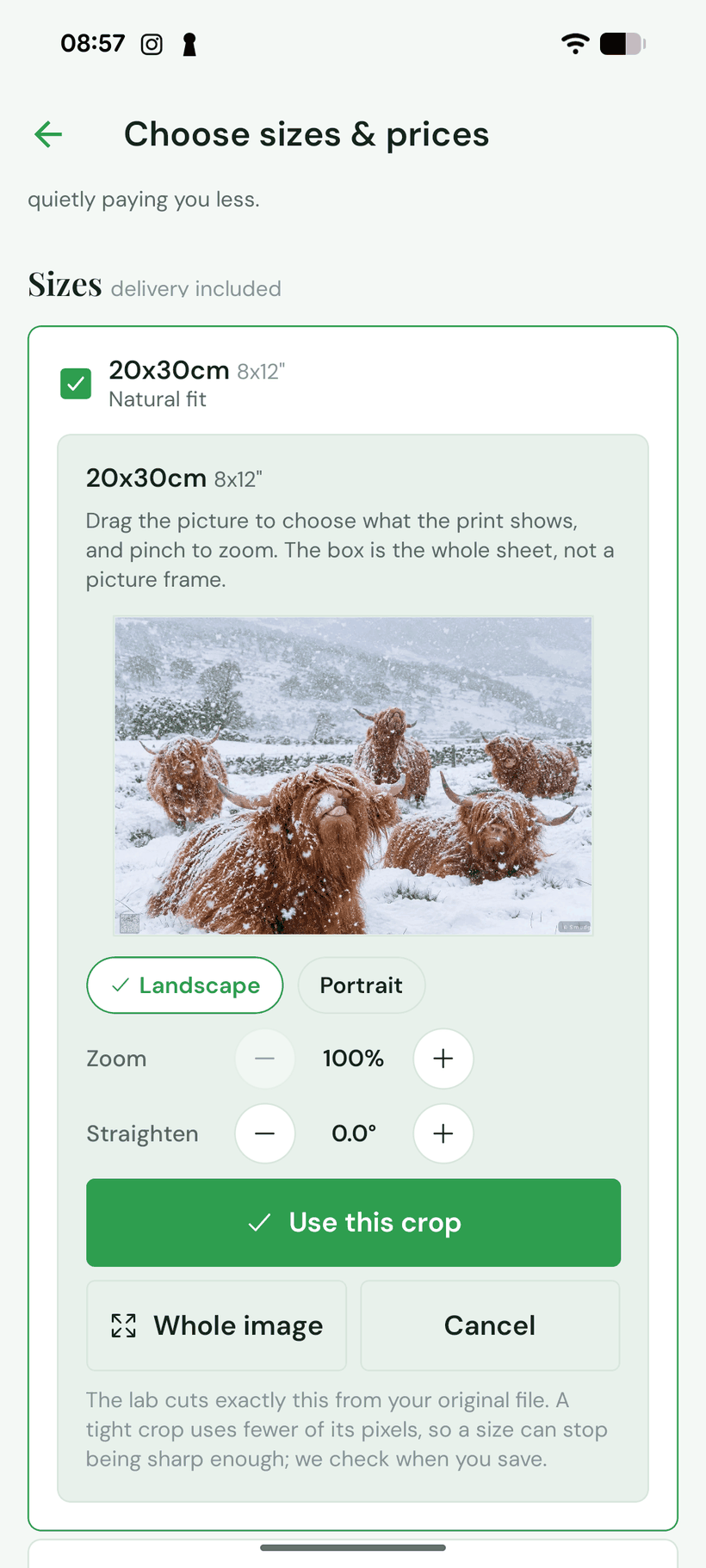
Where a size needs a crop, Verity proposes one that keeps the subject of the piece in the print, and the size is labelled Cropped so you can see which ones were changed. You can accept it, change it, or print the whole image with a border instead.
Setting it yourself takes a moment. Drag to choose what the print shows, zoom, straighten if the horizon is off, and switch between landscape and portrait. The box you are looking at is the whole sheet, not a picture frame.
One detail worth saying out loud: the lab prints from your original file, not from the watermarked copy the website shows.
What Verity does
Verity is the part people ask about, so here is the honest version: it does nothing on its own.
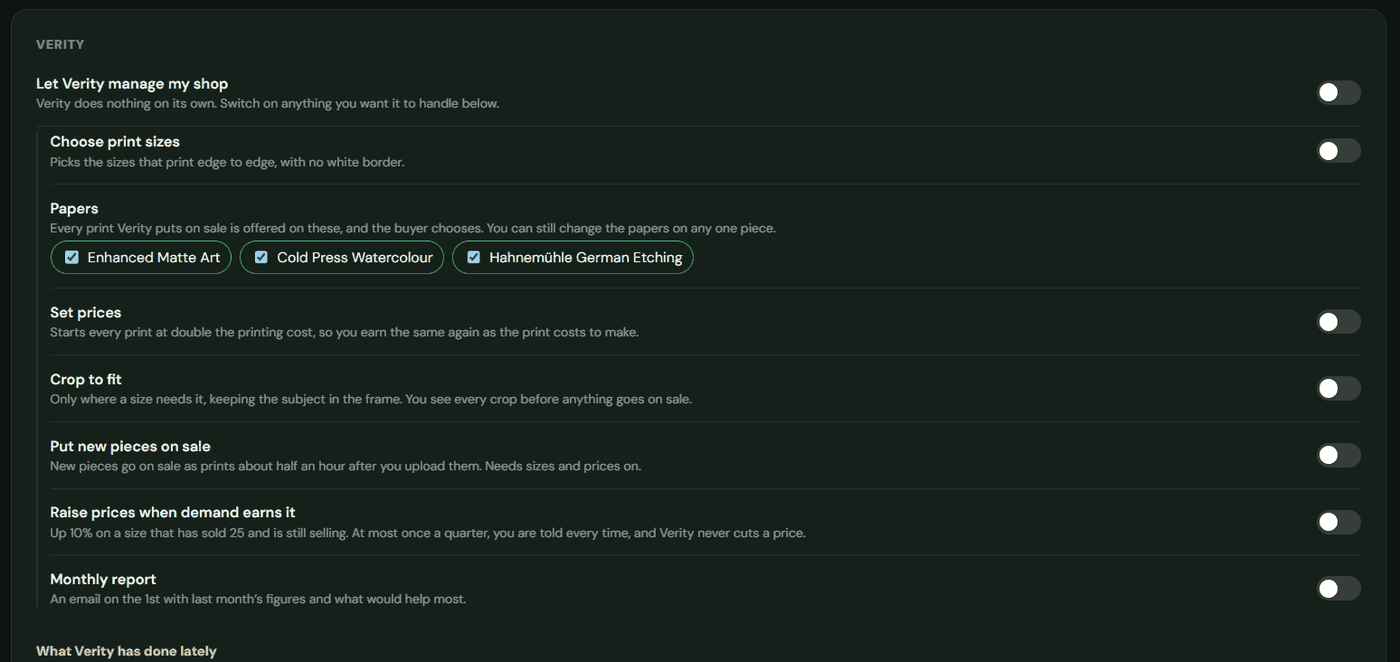
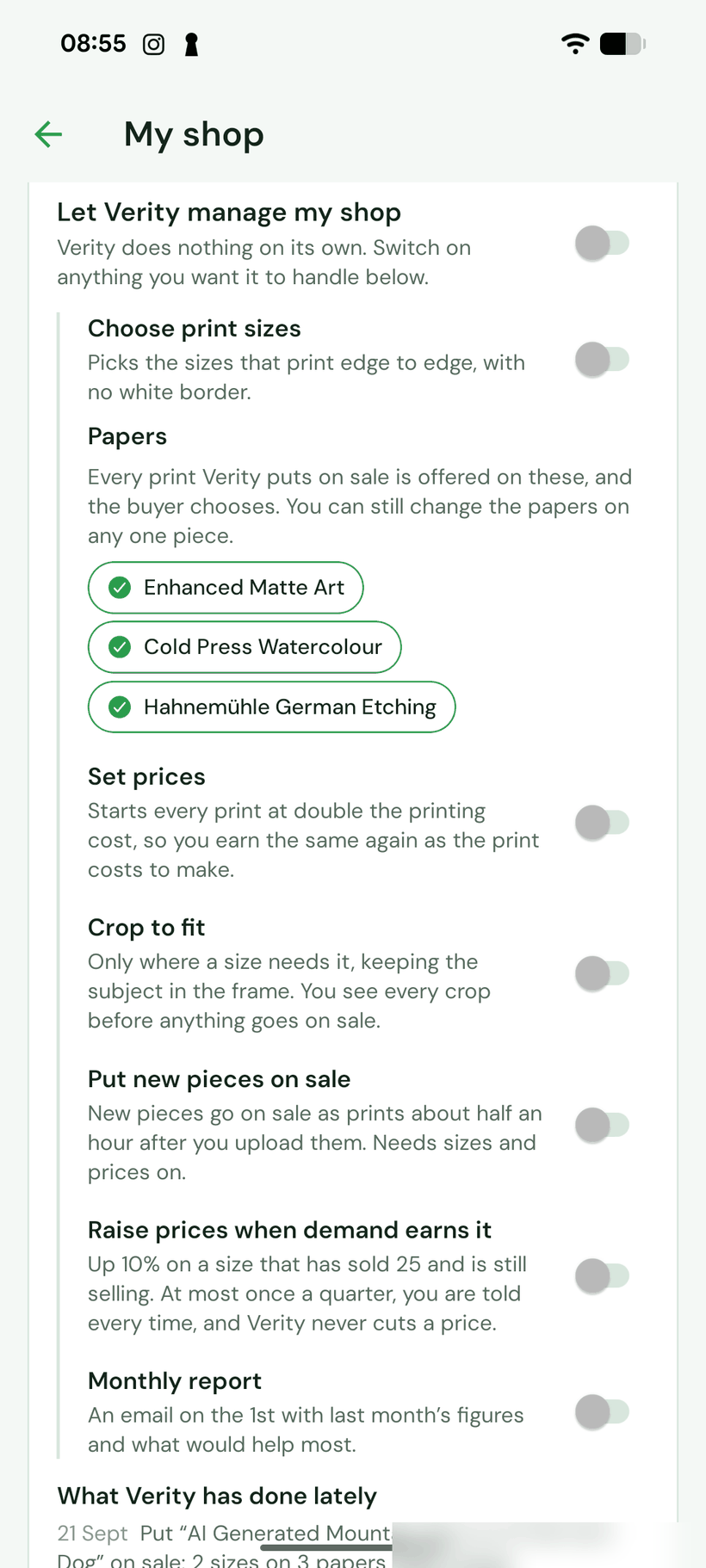
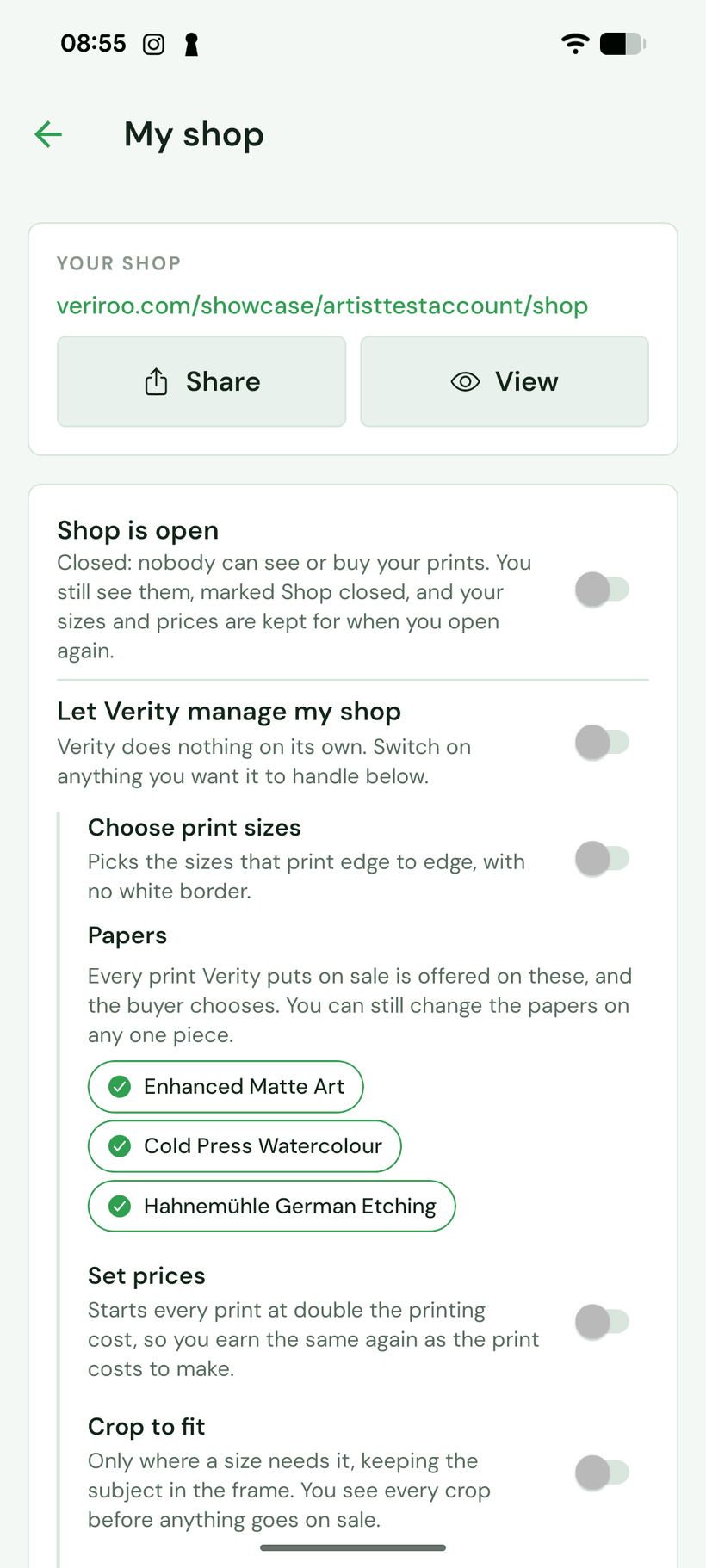
The panel is a list of separate jobs, each with its own switch, all off until you turn them on. You can hand over everything, or one thing, or nothing at all and still have a shop.
It can choose the print sizes, picking the ones that print edge to edge with no white border. It can propose a crop, only where a size needs one, and you see every crop before anything goes on sale. It can set your starting prices, which you can change on any size. It can put new pieces on sale about half an hour after you upload them. It can send you a report on the first of the month with last month’s figures.
It can also raise a price, and this is the switch worth reading twice. A price only moves on a size that has sold twenty five and is still selling. The rise is capped at ten per cent, it happens at most once a quarter, you are told every time, and Verity never cuts a price.
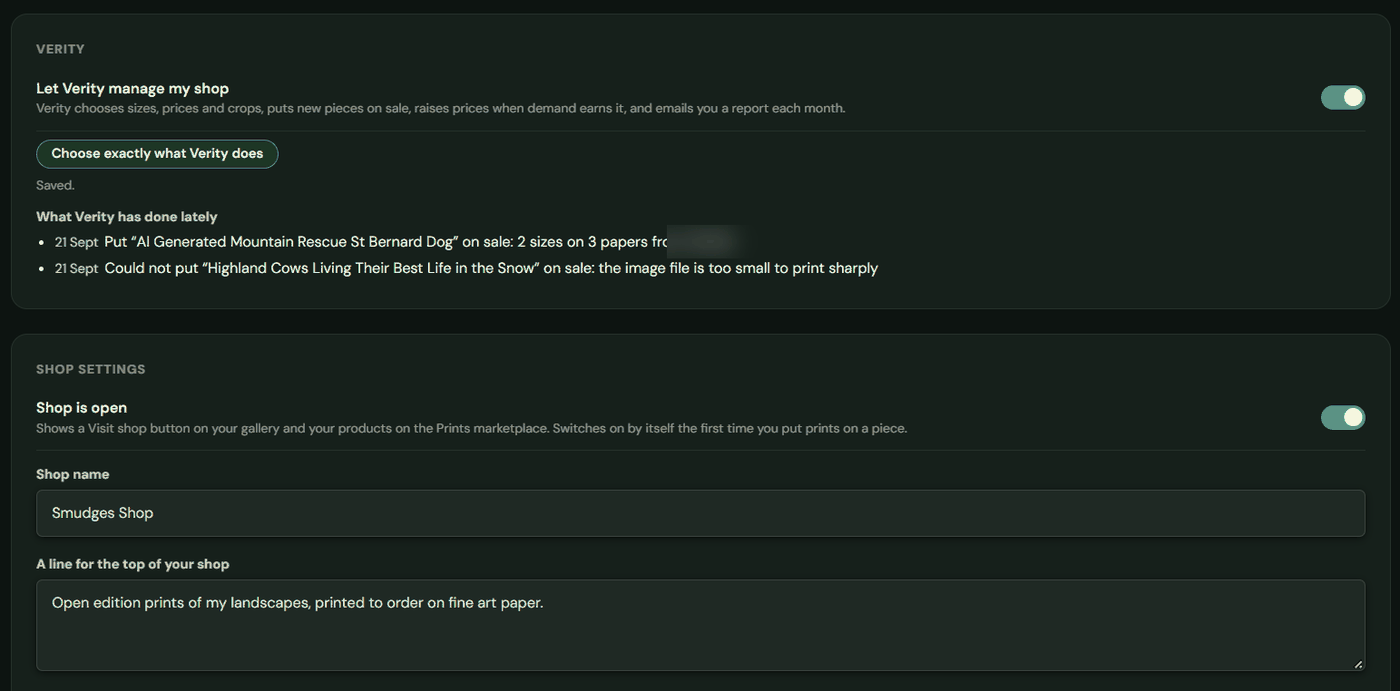
The panel also keeps a short log of what it has done lately, including what it could not do. “Could not put this piece on sale: the image file is too small to print sharply” is more use than silence.
Sharing it
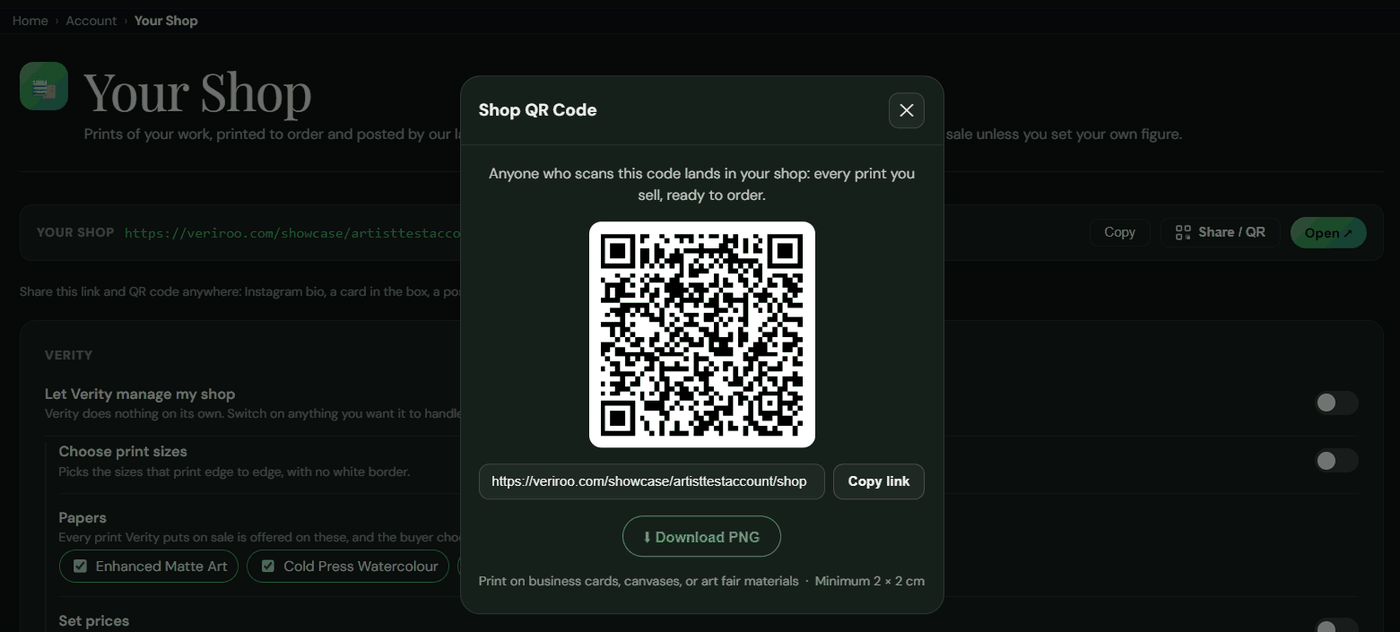
Your shop has its own address, veriroo.com/showcase/your-name/shop, with a Copy button, a Share button and a QR code you can download. The code goes on a business card, a label in the box, or a poster at a fair, and anyone who scans it lands in your shop.
Use the Share or Copy buttons rather than copying the link out of the address bar. Links shared from the buttons preview with a picture of your work. A link copied from the address bar does not.
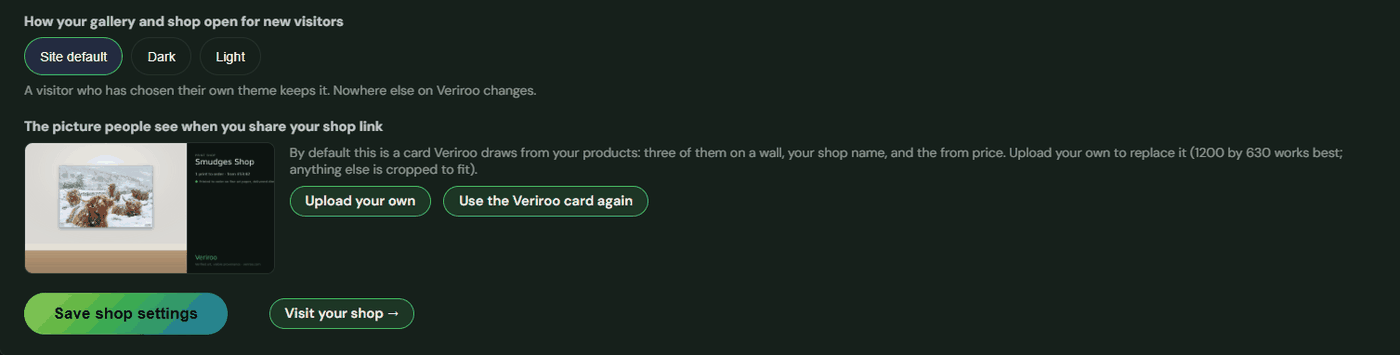
That preview picture is a card Veriroo builds from your products: three of them on a wall, with your shop name. You can upload your own instead. You can also choose whether your gallery and shop open light or dark for a first time visitor.
One switch closes the shop and takes every print off sale. Your sizes and prices are kept for when you open again.
What it does not do
Open prints are unsigned, unnumbered and carry no certificate, and they are labelled Open print everywhere so nobody mistakes one for something rarer. If you want signed and numbered, that is a limited edition, which you print and sign yourself and which carries a Certificate of Authenticity on every number.
Only the person who created a piece can sell prints of it. Owning a work gives you no right to print it.
Prints ship to UK and US addresses for now.
Prints, printed and posted for you
Put prints on a piece you created, set what you want to earn, and a lab near your buyer does the rest.